06 Installation
Verify the install
Four folders to compare against four photographs, one log file to skim, and three keys to press. If all of those match, the install is correct and anything odd you see later is a setting rather than a broken file.
Every screenshot here is from a real working install. Click any of them to open the untouched original at 1920×1080.
Check one: the game root#
This is the folder containing ravenfield.exe. Eleven items on a correct install —
three folders and eight files.
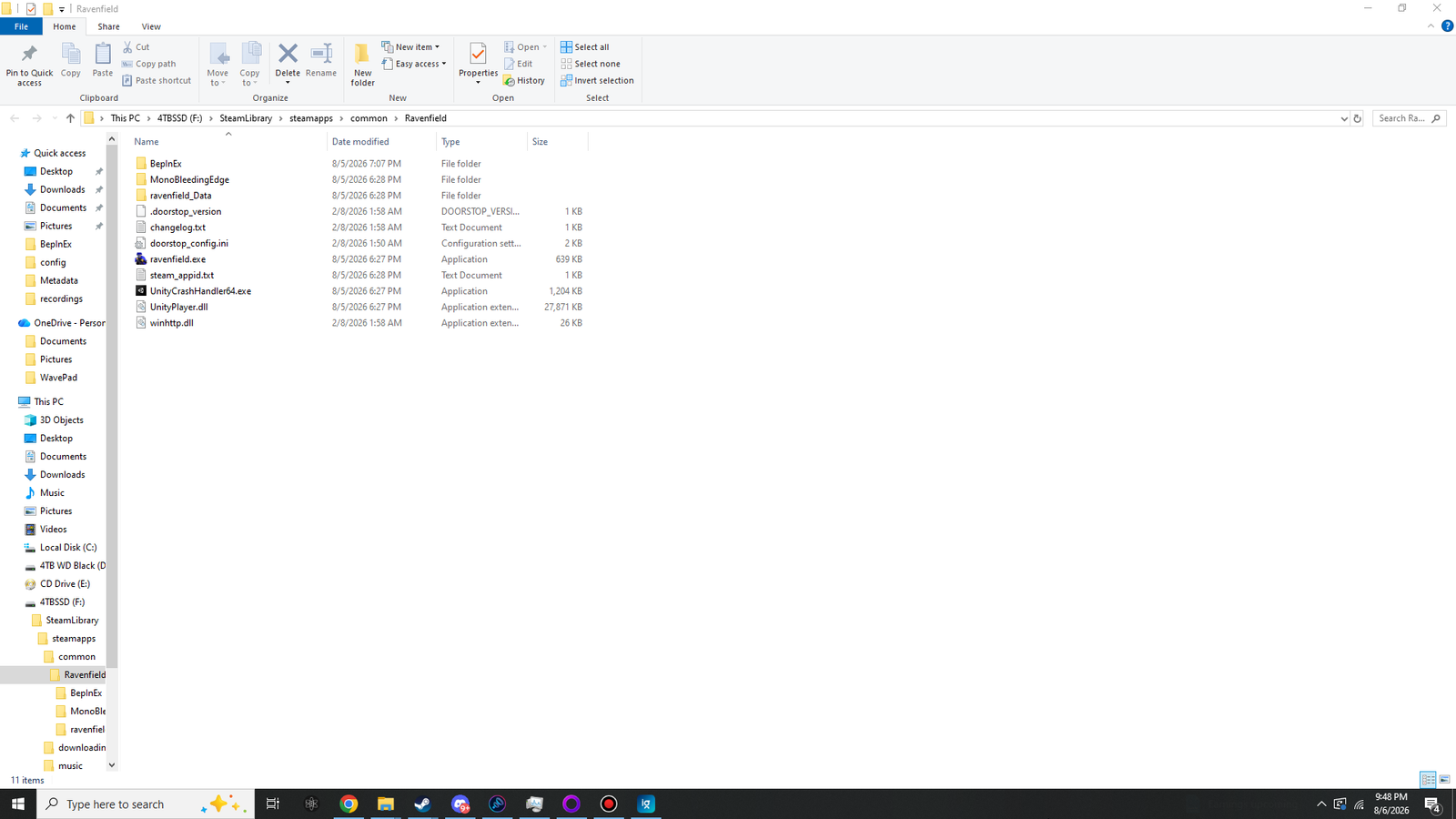
winhttp.dll, doorstop_config.ini and .doorstop_version sit directly beside ravenfield.exe — not inside a subfolder. The BepInEx folder is the only new directory.| Item | Where it came from | Must be present? |
|---|---|---|
BepInEx\ | The BepInEx zip | Yes |
MonoBleedingEdge\ | The game | Yes |
ravenfield_Data\ | The game | Yes |
.doorstop_version | The BepInEx zip | Informational |
changelog.txt | The BepInEx zip | Optional — safe to delete |
doorstop_config.ini | The BepInEx zip | Yes |
ravenfield.exe | The game | Yes |
steam_appid.txt | The game | Yes |
UnityCrashHandler64.exe | The game | Yes |
UnityPlayer.dll | The game | Yes |
winhttp.dll | The BepInEx zip — 26 KB | Yes |
Check two: the BepInEx folder#
Five folders and a log file. Only core came from the zip — the other four were created
the first time you ran the game.
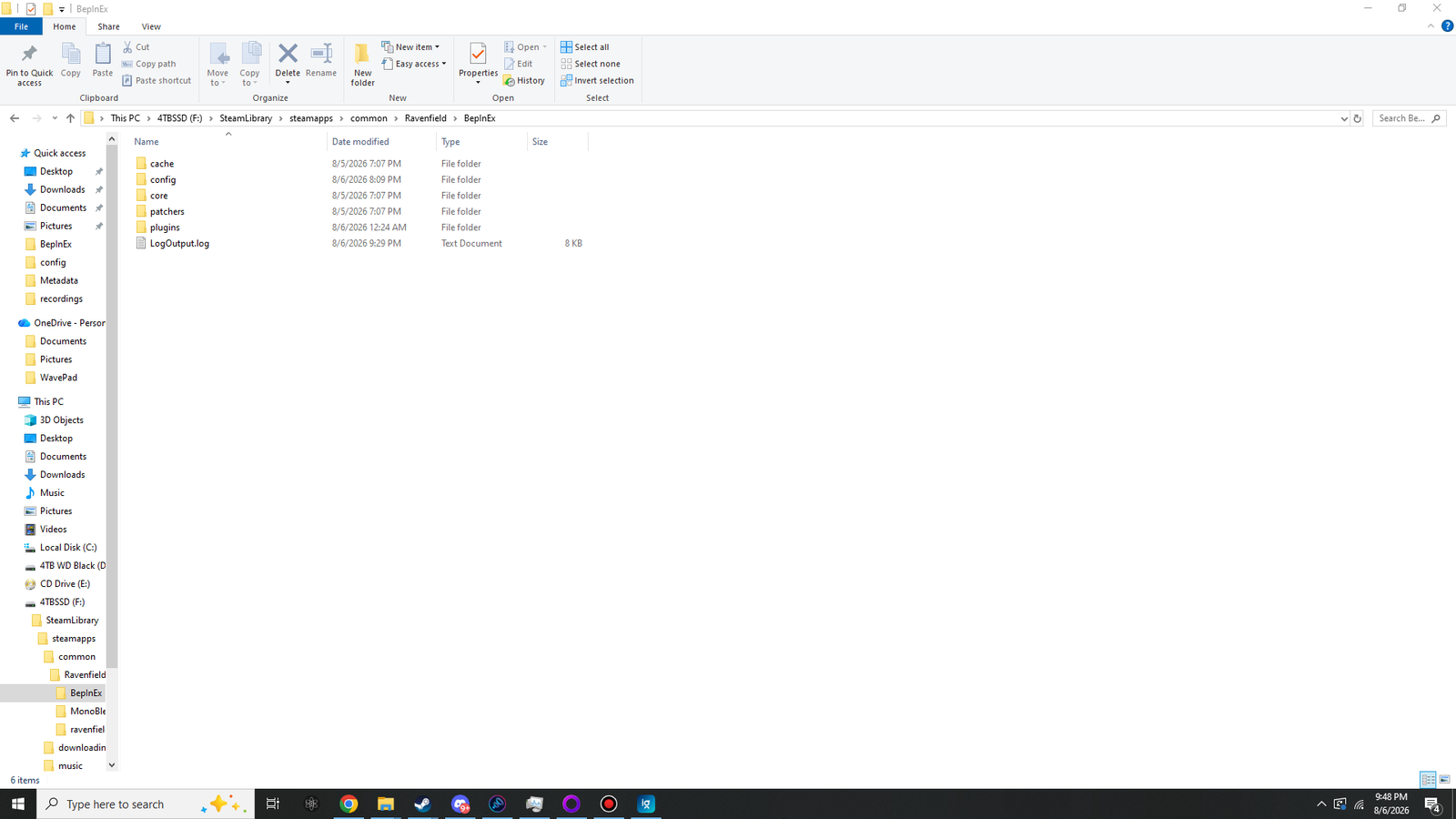
cache, config and plugins alongside the core and patchers folders that shipped in the zip. LogOutput.log is written on every launch.Check three: the plugins folder#
One DLL per mod you installed, loose in the folder. If you only installed one or two, you should see one or two — there is no requirement to have all three.
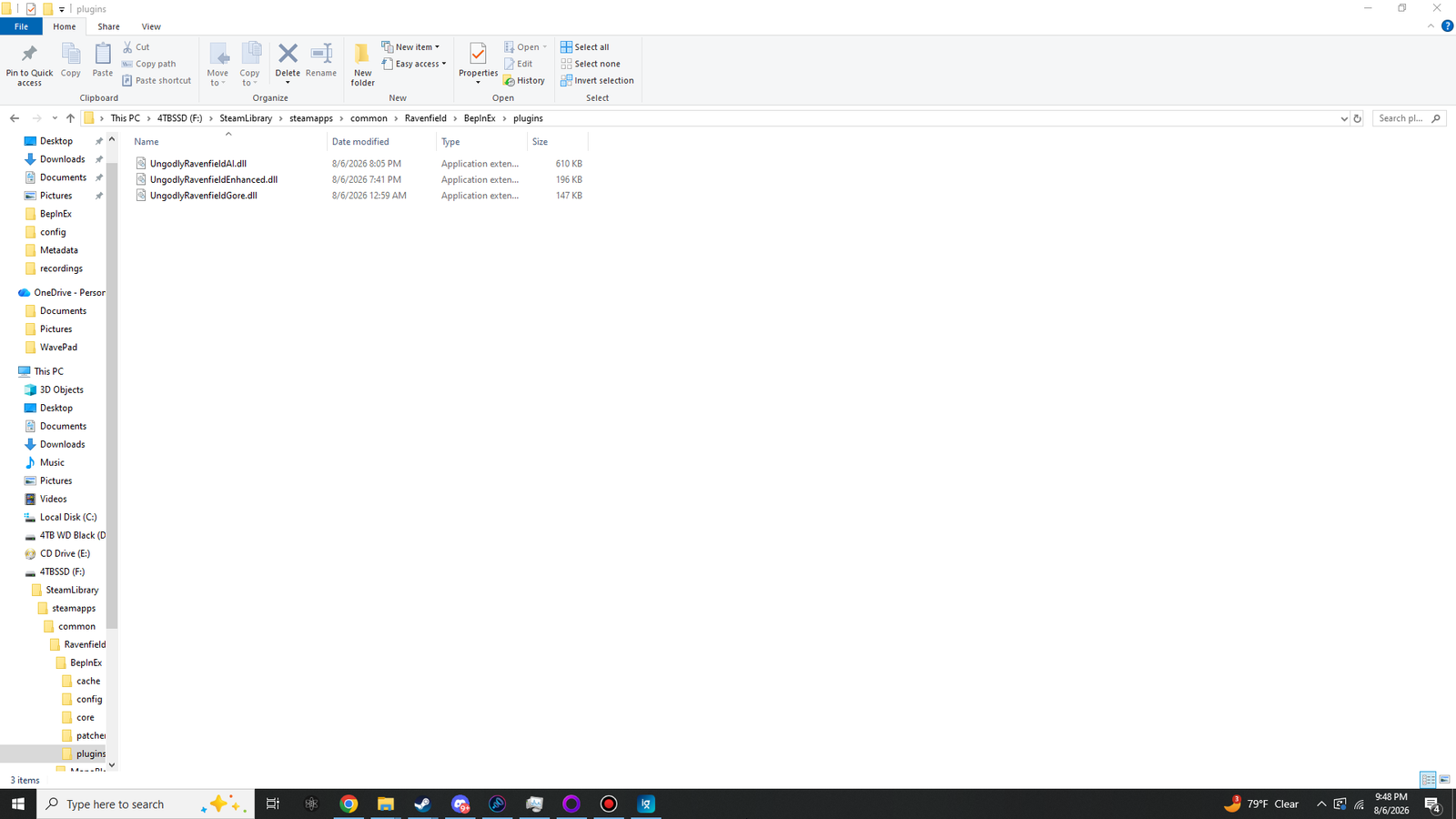
BepInEx\plugins\. No subfolders, no nesting. BepInEx does scan subfolders, but keeping them flat makes it obvious at a glance what is installed.| File | Size | Mod | Version |
|---|---|---|---|
UngodlyRavenfieldAI.dll |
610 KB | Ungodly Ravenfield AI | v5.7.0 |
UngodlyRavenfieldEnhanced.dll |
196 KB | Ungodly Ravenfield Enhanced | v1.0.2 |
UngodlyRavenfieldGore.dll |
147 KB | Ungodly Ravenfield Gore | v1.0.1 |
Sizes drift slightly between builds, so treat those as a sanity check rather than an exact match. A DLL of 0 KB is not a sanity check failure though — it means the copy was interrupted, and you should extract and copy it again.
Check four: the config folder#
This is the most informative check, because these files are written by the mods themselves. A config file existing proves that mod loaded, ran its startup and reached the point of saving its settings.
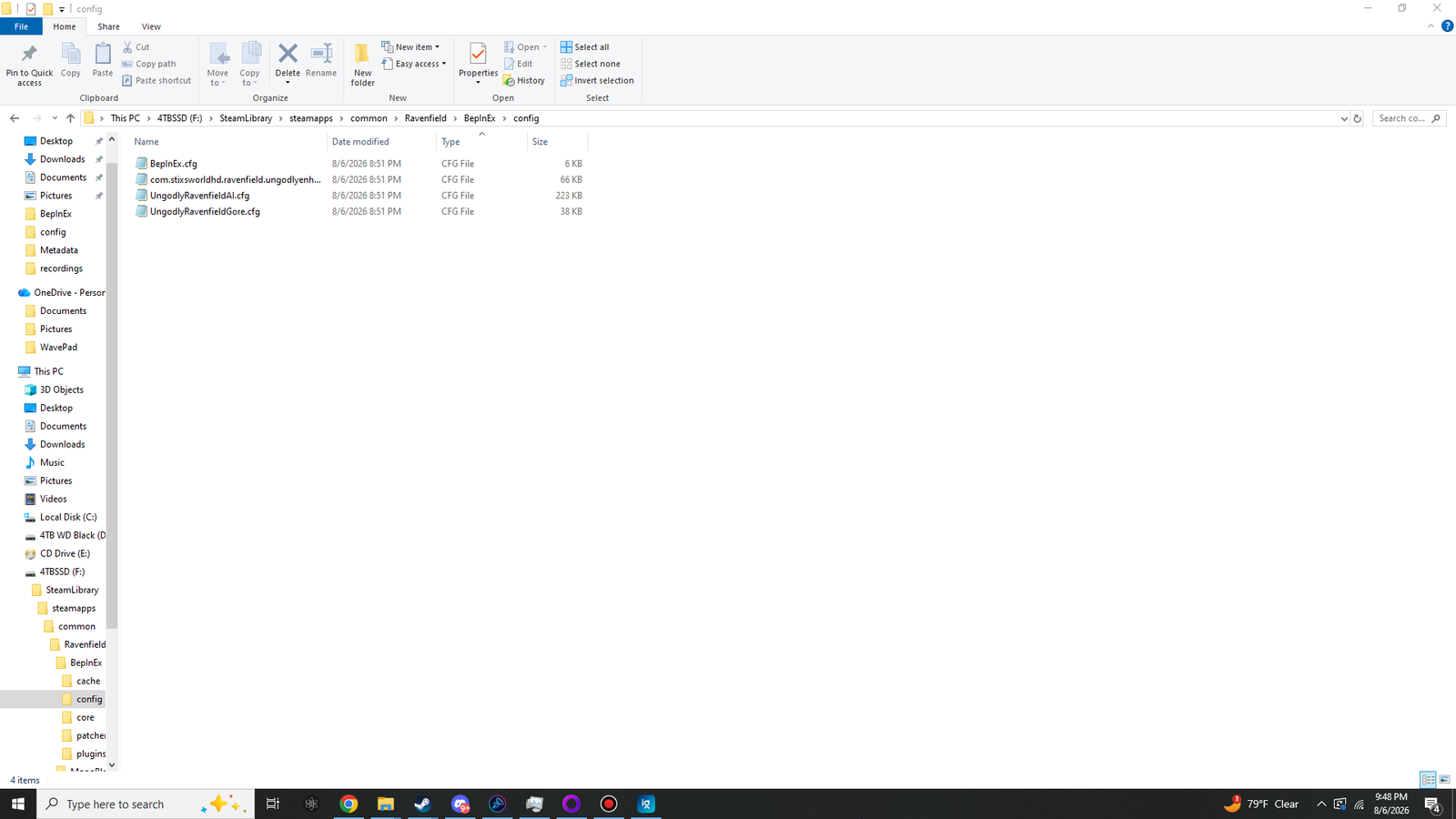
.cfg the first time it loads. If a file named after a mod is missing here, that mod did not load — go straight to the log.| File | Written by | Rough size |
|---|---|---|
BepInEx.cfg | The loader itself | 6 KB |
UngodlyRavenfieldAI.cfg | Ungodly Ravenfield AI | ~220 KB |
com.stixsworldhd.ravenfield.ungodlyenhanced.cfg | Ungodly Ravenfield Enhanced | ~66 KB |
UngodlyRavenfieldGore.cfg | Ungodly Ravenfield Gore | ~38 KB |
Reading the log#
Open BepInEx\LogOutput.log in Notepad. It is rewritten on every launch, so what you
are reading is always the most recent one. On a correct install with all three mods, you are
looking for a block like this near the top:
[Message:   BepInEx] BepInEx 5.4.23.3 - ravenfield
[Info   :   BepInEx] Running under Unity v2020.3.…
[Info   :   BepInEx] System platform: Bits64, Windows
[Message:   BepInEx] Preloader started
[Message:   BepInEx] Chainloader started
[Info   :   BepInEx] 3 plugins to load
[Info   :   BepInEx] Loading [Ungodly Ravenfield Gore 1.0.1]
[Info   :   BepInEx] Loading [Ungodly Ravenfield AI 5.7.0]
[Info   :   BepInEx] Loading [Ungodly Ravenfield Enhanced 1.0.2]
[Message:   BepInEx] Chainloader startup complete
The count on the plugins to load line is the number that matters. Three DLLs in the
folder and a count of two means one of them failed to load, and the reason will be a few lines
further down.
What each kind of line means#
| You see | It means | Do this |
|---|---|---|
| The log file does not exist | BepInEx never ran at all | Loader troubleshooting — usually a nested folder or the wrong pack |
0 plugins to load |
The loader works, but found nothing in plugins |
Check the DLLs are in BepInEx\plugins and not somewhere adjacent |
Loading [Ungodly … x.y.z] |
That mod loaded | Nothing — this is what you want |
Patch target not found |
One feature could not bind to the game method it needs | Nothing urgent. That single feature turns itself off and the rest keeps working. Usually means a game update moved something. |
Could not load … because it is a duplicate |
Two copies of the same plugin are present | You have an old copy in a subfolder of plugins. Delete it. |
Skipping … because it targets a newer version of BepInEx |
Version mismatch | You are on an old BepInEx 5 build. Update to 5.4.23.3. |
The final check: in game#
Files in the right places prove the mods loaded. Pressing the keys proves they are actually running.
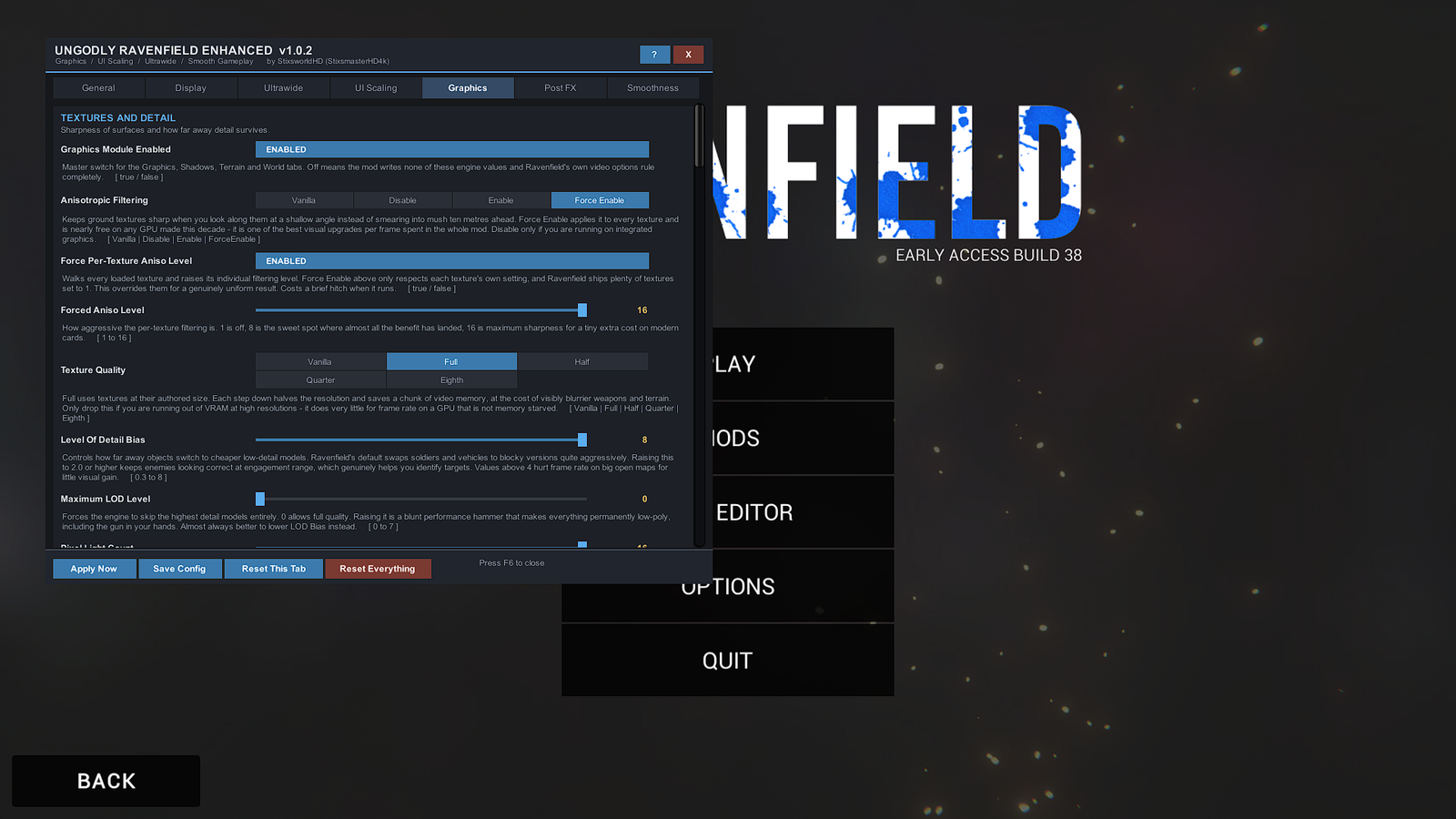
At the main menu, press F6
The Enhanced panel should open over the menu. It is the only one of the three that works outside a match, because rendering and interface scaling apply everywhere.
Your cursor is released automatically so you can click. Close the panel and the cursor locks back to the centre of the view.
Start any skirmish
Any map, any settings. You only need soldiers on the ground.
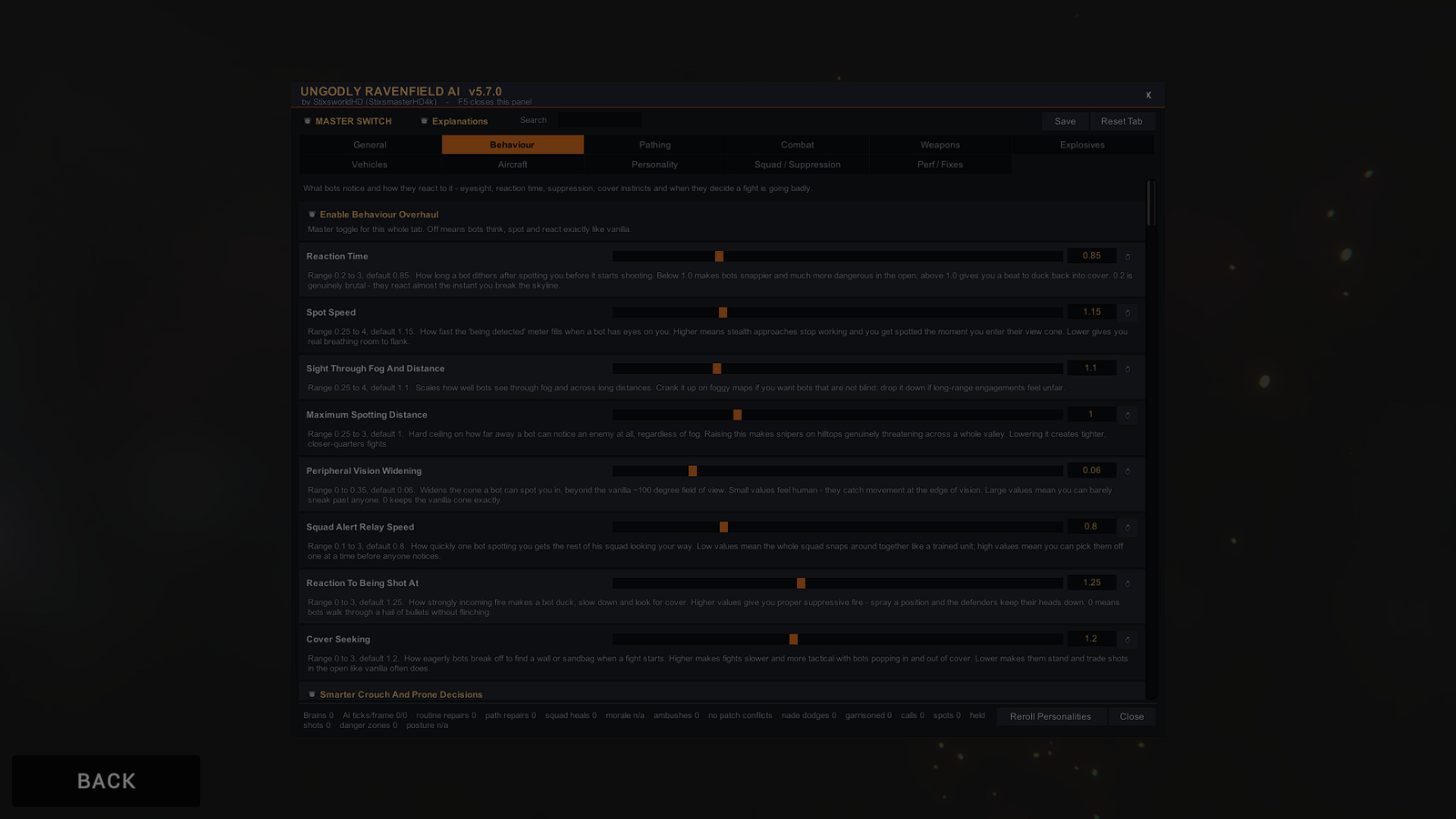
Press F5
The AI panel opens on the Behaviour tab. The counters along the bottom — brains, AI ticks per frame, path repairs, morale, ambushes — should be moving. Numbers that are all zero while a battle is going on means the mod loaded but its patches did not apply; check the log.
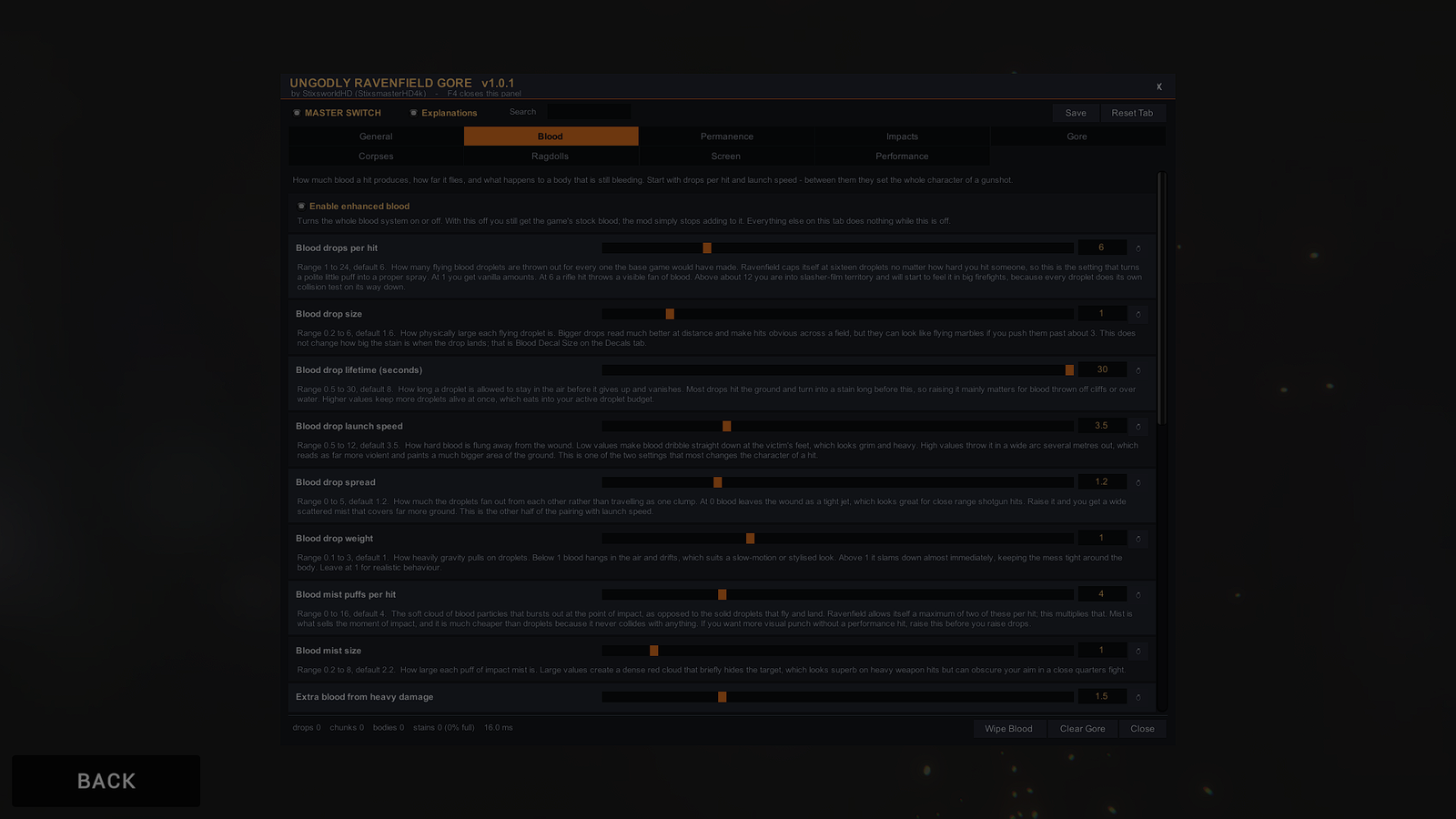
Press F4
The Gore panel opens. Its footer counts droplets in the air, chunks, bodies and stored stains. Shoot someone and watch those numbers move — that is the most direct proof there is that the mod is doing its job.
Everything at once#
All ticked means you are done installing. The next page covers what to change first — the handful of settings out of 836 that are worth touching before you play.