02 Requirements
Before you start
Five minutes here saves an hour of "why is nothing loading". Almost every failed BepInEx install comes down to one of four things: the wrong pack, the wrong folder, a zip Windows quietly blocked, or an antivirus that ate the loader.
What you need#
| Item | Required | Notes |
|---|---|---|
| The game | Ravenfield, Steam app 636480 | Guide written against Early Access Build 38. Earlier and later builds usually work; if a game update moves something, the affected feature disables itself and says so in the log. |
| Mod loader | BepInEx_win_x64_5.4.23.3.zip | Windows, 64-bit, Mono. This is the only variant that loads these plugins. See which pack below. |
| Archiver | 7-Zip, WinRAR or NanaZip | The mods ship as .rar, which Windows cannot open on its own. BepInEx ships as
a .zip, which Windows can. |
| Disk space | Roughly 3 MB | BepInEx unpacks to about 1.7 MB and the three mods to about 950 KB between them. Config files add a few hundred KB — the AI mod's runs to around 220 KB on its own, because every one of its settings is documented inside it. |
| Admin rights | Not needed | Unless your Steam library is on the system drive under Program Files, in which
case see write permission. |
| .NET runtime | Not needed | BepInEx 5 runs inside the game's own Mono runtime. Nothing is installed system-wide. |
Find your Ravenfield folder#
Everything in this guide happens in one folder: the one containing ravenfield.exe.
Modding guides call this the game root. Get it right once and the rest of the
install is drag and drop.
Open your Steam library
Right-click Ravenfield in the left-hand games list.
Manage, then Browse local files
Steam opens the folder directly in File Explorer. This is the game root — the folder you want for every step that follows.
Confirm you are in the right place
You should see
ravenfield.exe, a folder calledravenfield_Data,UnityPlayer.dllandMonoBleedingEdge. If you see those four, you are in the right folder.
The default location on most machines is under C:\Program Files (x86)\Steam\, but a
second library on another drive is common — the screenshot below is from a library on
F:\. What matters is not the path, it is what is inside the folder.
C:\Program Files (x86)\Steam\steamapps\common\Ravenfield\
F:\SteamLibrary\steamapps\common\Ravenfield\
D:\Games\Steam\steamapps\common\Ravenfield\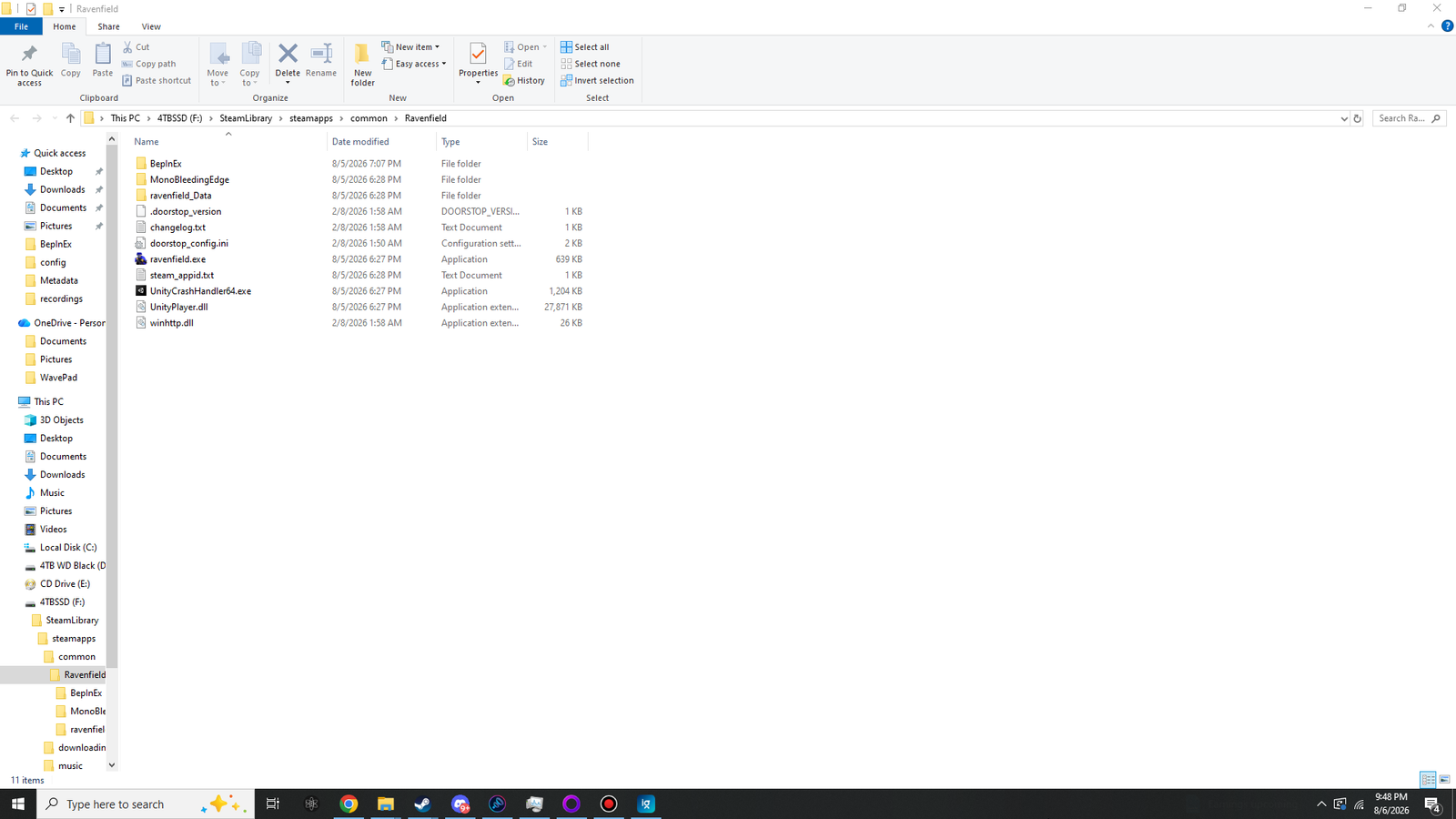
BepInEx, winhttp.dll, doorstop_config.ini and .doorstop_version — everything else should already match.Which BepInEx pack, and why it matters#
BepInEx is published in a lot of variants because it supports a lot of games. Three things about your game decide which one you need, and Ravenfield answers all three the same way every time:
- Operating system
- Windows — so a
winpack. Linux and Steam Deck users see the note below. - Architecture
- 64-bit — so
x64, neverx86. Ravenfield has shipped 64-bit only for years. - Scripting backend
- Mono — not IL2CPP. Confirmed by the
MonoBleedingEdgefolder in the game root. - Major version
- BepInEx 5. All three of these mods are built against the BepInEx 5 API. BepInEx 6 is still pre-release and does not load BepInEx 5 plugins.
Put together, that is one file: BepInEx_win_x64_5.4.23.3.zip. Older BepInEx 5
releases named the same pack BepInEx_x64_5.4.x.x.zip without the win; both
naming styles are the same thing and either will work.
| File name you might see | Use it? | What it actually is |
|---|---|---|
BepInEx_win_x64_5.4.23.3.zip |
Yes | Windows, 64-bit, Mono, BepInEx 5. This is the one. |
BepInEx_x64_5.4.21.0.zip |
Yes | The same pack under the older naming used before 5.4.22. Fine to use. |
BepInEx_win_x86_5.4.23.3.zip |
No | 32-bit. It will sit there doing nothing, because the game process is 64-bit and will not load a 32-bit DLL. |
BepInEx-Unity.IL2CPP-win-x64-6.0.0-be.###.zip |
No | IL2CPP, and BepInEx 6. Two reasons it will not work. This is the pack people grab by accident most often, because it is at the top of the bleeding-edge list. |
BepInEx-Unity.Mono-win-x64-6.0.0-be.###.zip |
No | Right game type, wrong major version. BepInEx 6 pre-releases do not load BepInEx 5 plugins. |
BepInExPack_<SomeGame>.zip from Thunderstore |
No | Repacks configured for a specific other game. Some are fine, some ship a
doorstop_config.ini pointed somewhere Ravenfield does not have. Use the
official pack. |
Two Windows behaviours that break installs#
Downloaded archives arrive blocked#
Windows attaches a hidden marker to files downloaded from the internet. When you extract an archive that carries it, every file inside inherits the marker, and .NET refuses to load blocked assemblies from some locations. The result is a BepInEx install that looks perfect and does nothing.
Fix it before extracting, on the zip itself:
Right-click the downloaded zip or rar
Choose Properties.
Look at the bottom of the General tab
If there is a Security line reading This file came from another computer and might be blocked, tick Unblock and click OK.
If there is no such line, the file was never marked and there is nothing to do.
Get-ChildItem -Path . -Recurse | Unblock-FileAntivirus does not like DLL injection#
BepInEx works by getting a DLL loaded into another process. That is also what a lot of malware
does, so heuristic scanners flag it periodically — Windows Defender has quarantined
winhttp.dll on and off for years, and third-party suites are worse about it.
If files vanish from the game folder shortly after you extract them, that is what happened. The fix is to add an exclusion for your Ravenfield folder in your antivirus settings, then extract again. In Windows Security that is Virus & threat protection → Manage settings → Add or remove exclusions → Add an exclusion → Folder.
Write permission and synced folders#
-
Libraries under
C:\Program Filessometimes need elevation to write to. If dropping a file in produces a "you need permission" prompt, click through it — that is normal and grants the copy. If it fails outright, run File Explorer as administrator for that one copy. - Never put a Steam library inside OneDrive, Dropbox or Google Drive. Sync clients lock files while uploading, which makes BepInEx's log and config writes fail intermittently and produces problems that come and go for no visible reason.
- Extract to the real folder, not through a shortcut. Dragging into a pinned Quick Access entry that points somewhere else is an easy way to install BepInEx into the wrong game.
Linux, Steam Deck and Proton#
Ravenfield through Proton is a Windows process, so it wants the Windows BepInEx pack — the same BepInEx_win_x64_5.4.23.3.zip as everyone else, not the Linux one. The extra step is that Proton needs to be told to load the loader.
Set the game's launch options in Steam to:
WINEDLLOVERRIDES="winhttp=n,b" %command%
Everything else in this guide applies unchanged, including the folder layout. Case sensitivity is
the one thing to watch: on Linux filesystems BepInEx/plugins and
BepInEx/Plugins are different folders, and only the first one is scanned.
A word on multiplayer#
Ravenfield is a singleplayer and skirmish game, and all three of these mods are built for that. There is no anti-cheat to trip and nothing here communicates over a network. If you use a community multiplayer mod, be aware that these change AI behaviour, rendering and decals locally only — other players will not see the same battle you do.