04 Installation
Install BepInEx 5 (x64)
BepInEx is the layer that lets Ravenfield load code that did not ship with it. Installing it is one extraction and one launch of the game — but both of those have a way of going subtly wrong, so this page covers exactly what correct looks like at each stage.
Do this once. All three mods, and any other Ravenfield plugin you install later, use the same loader.
How BepInEx actually gets in#
Worth thirty seconds, because it explains every rule that follows.
Windows programs load system DLLs by name, and they look in their own folder before they look in
the system folder. BepInEx exploits that: it ships a file called winhttp.dll which
Ravenfield loads instead of the real one, because it is sitting right there next to the
executable. That file is Unity Doorstop, and all it does is start up, forward
every genuine winhttp call on to the real system library so nothing breaks, read
doorstop_config.ini, and load whatever assembly that file points at.
[General]
enabled = true
target_assembly=BepInEx\core\BepInEx.Preloader.dll
So the chain is: game starts → loads winhttp.dll from its own folder → Doorstop
reads the ini → Doorstop loads BepInEx’s preloader → the preloader scans
BepInEx\plugins and loads every plugin it finds → the game continues
normally.
What is in the pack#
The official BepInEx_win_x64_5.4.23.3.zip contains twenty-two files and exactly four things at the
top level. Knowing this makes the next step unambiguous, because these four items are precisely
what has to end up in your game folder:
- .doorstop_version5 bytes, reads "4.4.0"
- changelog.txtharmless, can be deleted
- doorstop_config.inipoints Doorstop at the preloader
- winhttp.dll26 KB — this is Doorstop itself
- BepInEx\
- core\18 files — the loader, Harmony, Cecil, MonoMod
The install#
Download the right pack
Roughly 624 KB
Open the BepInEx releases page, find the newest release whose version starts with 5.4, expand its Assets list and download:
BepInEx_win_x64_5.4.23.3.zipThe assets list is long and most of it is for other kinds of game. If the file name contains
IL2CPP,x86,unix,linux,macosor6.0.0-be, it is not the one — the full comparison table is here.Unblock the zip before you extract it
Skipping this causes a silent no-op install
Right-click the downloaded file → Properties. If the General tab has a Security line at the bottom saying the file came from another computer, tick Unblock, then OK.
Do this on the zip, before extracting. Once you extract a blocked archive, every file inside inherits the block and you have twenty-two of them to clear instead of one.
If there is no Security line, your browser did not mark the file and there is nothing to do.
Extract it into the Ravenfield folder
The step that goes wrong most often
Open your game root — Steam → right-click Ravenfield → Manage → Browse local files — and extract the contents of the zip into it.
The word doing the work there is into. You want the four top-level items from the archive sitting directly in the game folder, alongside
ravenfield.exe. You do not want a folder calledBepInEx_win_x64_5.4.23.3in there.The reliable way with 7-Zip: open the zip, press Ctrl+A to select all four items, and drag them into the Explorer window showing your game folder. With WinRAR, Extract to and then set the destination path to the game folder by hand rather than accepting the suggested subfolder.
Launch Ravenfield once, then quit
This is what generates the plugins and config folders
Start the game normally from Steam. Wait for the main menu to finish loading — the loading screen alone is not far enough — then quit back to the desktop.
During that launch, BepInEx created its remaining folders. Without this step there is nowhere to put a plugin, and creating
pluginsby hand hides the more useful information that BepInEx never ran at all.Check that it worked
Five folders and a log file
Back in the game folder, you should now have a
BepInExfolder containingcache,config,core,patchersandplugins, plus aLogOutput.logfile.If
LogOutput.logexists, BepInEx ran. That is the single best yes-or-no signal you have, and everything in the section below is about reading it.
What correct looks like#
After step three — extraction, before the first launch — your game root should look like this:
- Ravenfield\
- BepInEx\you add this
- core\you add this18 files
- MonoBleedingEdge\shipped with the game
- ravenfield_Data\shipped with the game
- .doorstop_versionyou add this
- changelog.txtyou add this
- doorstop_config.iniyou add this
- ravenfield.exeunmodified, always
- steam_appid.txt
- UnityCrashHandler64.exe
- UnityPlayer.dll
- winhttp.dllyou add thismust be at this level
- BepInEx\you add this
And this is a real install, photographed after the first launch. Click it to compare against your own folder at full size:
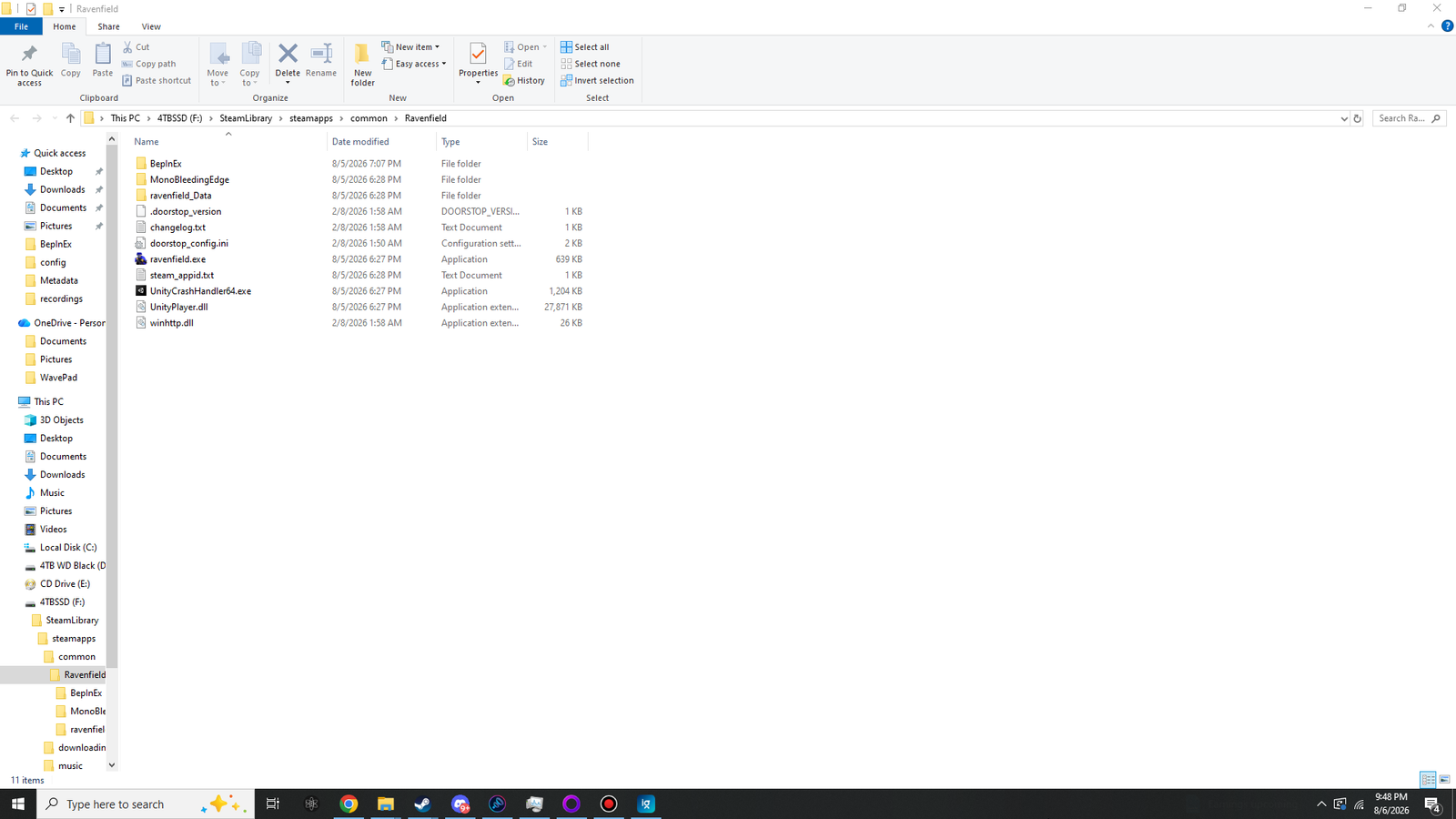
winhttp.dll, doorstop_config.ini and .doorstop_version sit directly beside ravenfield.exe — not inside a subfolder. The BepInEx folder is the only new directory.After the first launch#
The launch in step four fills out the rest of the structure. Four folders appear that were not in the zip:
- BepInEx\
- cache\created for youassembly scan cache — safe to delete any time
- config\created for youyour settings live here
- core\came from the zip
- patchers\created for youfor preload-time patchers; stays empty here
- plugins\created for youthe mods go in here
- LogOutput.logcreated for yourewritten on every launch
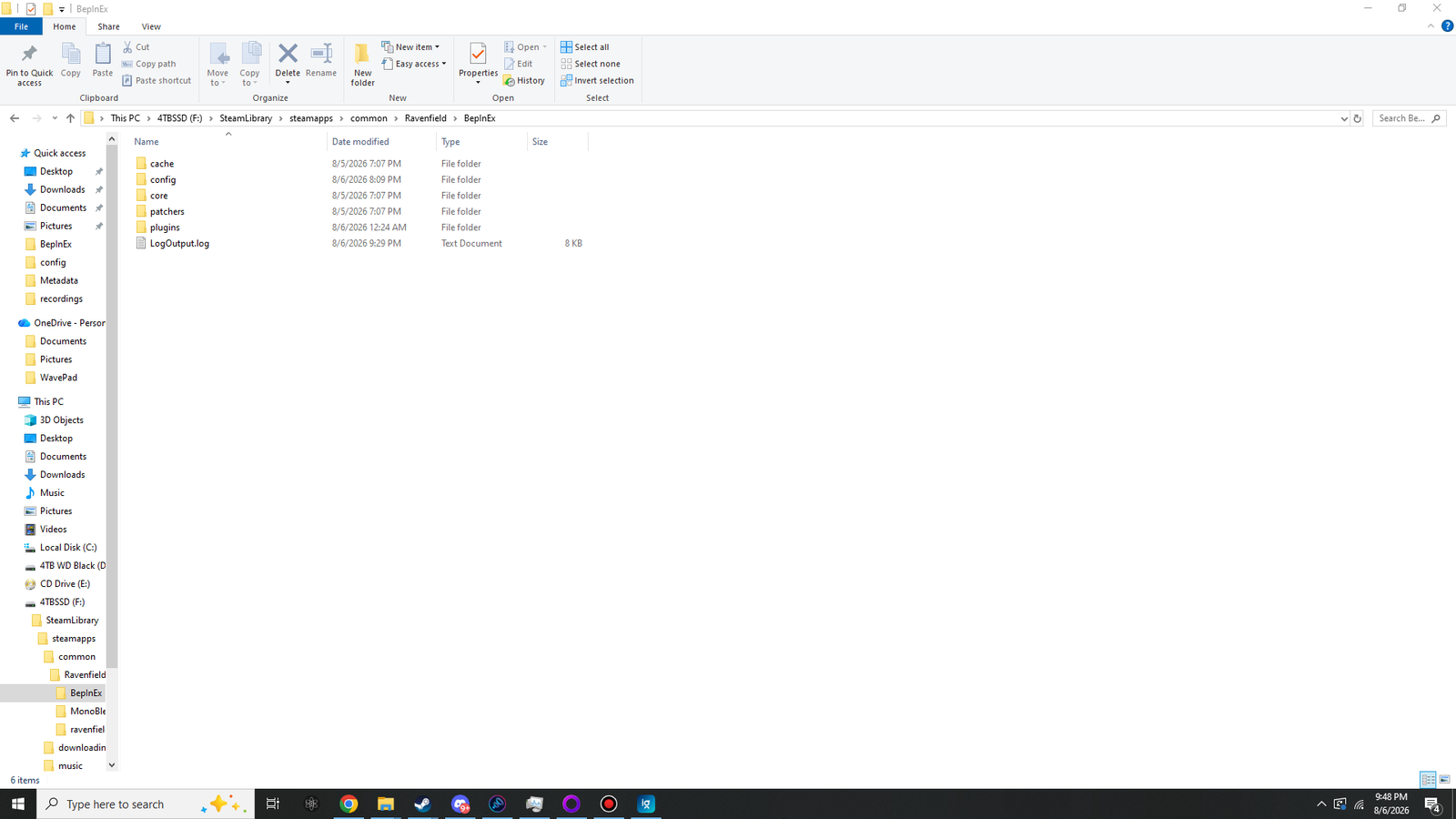
cache, config and plugins alongside the core and patchers folders that shipped in the zip. LogOutput.log is written on every launch.| Folder | What it is for | Safe to delete? |
|---|---|---|
core |
BepInEx itself — the preloader, Harmony, Cecil and MonoMod. Came from the zip. | No — this is the loader |
plugins |
Every mod DLL. Scanned recursively at startup, so subfolders work, but flat is easier to read at a glance. | Deleting a DLL removes that mod |
config |
One .cfg per plugin, plus BepInEx.cfg for the loader itself.
Plain text. |
Yes — regenerated at defaults |
cache |
A cached index of which assemblies contain plugins, so startup does not rescan everything each time. | Yes — rebuilt automatically |
patchers |
Assembly patchers that run before Unity loads the game code. None of these three mods use one, so it stays empty. | Yes, but leave it |
Reading the log#
BepInEx\LogOutput.log is written fresh on every launch and it will tell you more in
ten seconds than an hour of moving files around. Open it in Notepad. The first few lines should
look like this:
[Message:   BepInEx] BepInEx 5.4.23.3 - ravenfield (…)
[Info   :   BepInEx] Running under Unity v2020.3.…
[Info   :   BepInEx] CLR runtime version: 4.0.30319.…
[Info   :   BepInEx] Supports SRE: True
[Info   :   BepInEx] System platform: Bits64, Windows
[Message:   BepInEx] Preloader started
[Info   :   BepInEx] 0 patcher plugins loaded
[Message:   BepInEx] Preloader finished
[Message:   BepInEx] Chainloader ready
[Message:   BepInEx] Chainloader started
[Info   :   BepInEx] 0 plugins to load
0 plugins to load is the correct and expected result at this point — you have not
installed any yet. What matters is that the file exists and that the version and platform lines
read 5.4.x and Bits64, Windows.
Optional: turn on the console#
BepInEx can open a second window alongside the game showing everything it and every plugin logs, live. It is not needed for normal play, but if you are ever diagnosing something it turns guesswork into reading.
Open BepInEx\config\BepInEx.cfg
Any text editor. This file only exists after the first launch.
Find the [Logging.Console] section
Change
Enabled = falsetoEnabled = true, save, and start the game.
[Logging.Console]

## Enables showing a console for log output.
# Setting type: Boolean
# Default value: false
Enabled = trueWhen it does not work#
In rough order of how often each one is the answer.
There is no LogOutput.log and no new folders#
BepInEx never ran. Almost always the extraction went one level too deep — check for a folder named
after the zip inside your game folder. Confirm that winhttp.dll and
ravenfield.exe are visible in the same Explorer window at the same time. If they are
not, that is the whole problem.
winhttp.dll is in the right place and still nothing happens#
Check the file size. The correct winhttp.dll from the x64 pack is
26 KB. If yours is a different size you have the x86 pack, and a 64-bit
process will not load a 32-bit DLL — it fails silently and carries on. Re-download
BepInEx_win_x64_5.4.23.3.zip.
Files disappear from the game folder on their own#
Antivirus. DLL injection looks like malware to a heuristic scanner because it is the same technique. Add your Ravenfield folder as an exclusion and extract again — the walkthrough is on the requirements page.
Doorstop is installed but disabled#
Open doorstop_config.ini and confirm enabled = true under
[General]. Some mod managers and some game-specific repacks ship it set to
false, or point target_assembly at a path that does not exist in
Ravenfield. It should read exactly:
enabled = true
target_assembly=BepInEx\core\BepInEx.Preloader.dll
It works from the exe but not from Steam, or the other way round#
Both routes run the same executable from the same folder, so both should behave identically. If
they do not, something is passing an argument that disables Doorstop — check
Properties → Launch Options in Steam for a stray
--doorstop-enabled false or a DOORSTOP_DISABLE environment variable left
over from a previous mod setup.
It stopped working after a game update#
A Ravenfield update replaces files in the game folder but does not remove BepInEx. Occasionally
Steam's file verification decides winhttp.dll does not belong and deletes it. Extract
the pack again — your plugins and config folders are untouched, so nothing
is lost and no settings are reset.
Loader installed#
With those five true, the loader is done and you never have to think about it again. The mods themselves are three copy-and-paste operations.