1Step 1 of 4
Install BepInEx 5 (x64) into Ravenfield
BepInEx is the loader that lets Ravenfield run plugins such as RaveM. You copy five items into the game folder, start the game once so BepInEx can set itself up, and check one log file. RaveM itself comes in Step 3.
Pick the right BepInEx build
Use BepInEx 5.4.23.5, the file BepInEx_win_x64_5.4.23.5.zip. It was the latest stable release when this guide was checked
(2 October 2026), published on 8 February 2026. It's also the exact build in this guide's
screenshots: the loader files in the game folder have the same dates and sizes as the files in this zip.
BepInEx_win_x64_5.4.23.5.zip
BepInEx 5.4.23.5, Windows x64
- Size
- 639,118 bytes (File Explorer shows 625 KB)
- SHA-256
- 82f9878551030f54657792c0740d9d51a09500eeae1fba21106b0c441e6732c4
- Source
- The official BepInEx project on GitHub. This is the SHA-256 GitHub publishes for the file; the zip was downloaded and checked against it.
Official download
Both buttons go to github.com/BepInEx/BepInEx.
Why this exact build
| Choice | Why |
|---|---|
| BepInEx 5, not 6 | RaveM is a BepInEx 5 plugin: RaveM.dll was built against BepInEx 5.4.23.2.
BepInEx 6 is a separate pre-release line with a different plugin system. |
| x64, not x86 | Ravenfield is a 64-bit game; its folder contains UnityCrashHandler64.exe. The loader in the x64 zip,
winhttp.dll, is a 64-bit DLL of 26,112 bytes. A 64-bit game can't load the 32-bit one from the x86 zip (22,016 bytes). |
| Windows build | ravenfield.exe is a Windows program, so it takes the win_x64 zip, also on Linux and Steam Deck where it runs through Proton. |
| Mono, not IL2CPP | Ravenfield uses Unity's Mono runtime: its folder has MonoBleedingEdge and no GameAssembly.dll.
BepInEx 5 is made for Mono games. |
The release page lists six files. Only one of them is for Ravenfield:
| File on the release page | Use it? | Made for |
|---|---|---|
BepInEx_win_x64_5.4.23.5.zip | Yes | 64-bit Windows games, like Ravenfield |
BepInEx_win_x86_5.4.23.5.zip | No | 32-bit Windows games |
BepInEx_linux_x64_5.4.23.5.zip | No | Games built for Linux, 64-bit |
BepInEx_linux_x86_5.4.23.5.zip | No | Games built for Linux, 32-bit |
BepInEx_macos_universal_5.4.23.5.zip | No | Games built for macOS |
BepInEx_Patcher_5.4.23.5.zip | No | A separate patching tool you don't need here |
Find your Ravenfield folder
Open Steam and go to your Library.
Right-click Ravenfield, then choose Manage > Browse local files.
File Explorer opens the game folder. You're in the right place when you can see
ravenfield.exe.
On a default Steam install the folder is:
C:\Program Files (x86)\Steam\steamapps\common\RavenfieldGames in another Steam library live in that library's steamapps\common\Ravenfield.
The screenshots in this guide use F:\SteamLibrary\steamapps\common\Ravenfield.
Copy BepInEx next to ravenfield.exe
Close Ravenfield if it's running.
In your Downloads folder, double-click
BepInEx_win_x64_5.4.23.5.zipto open it.Select all five items inside with Ctrl + A: the
BepInExfolder,.doorstop_version,changelog.txt,doorstop_config.iniandwinhttp.dll. Copy them with Ctrl + C.Go to the Ravenfield folder and paste with Ctrl + V. If Windows asks for administrator permission, choose Continue.
That's everything the zip adds. core holds BepInEx itself; nothing else is inside the BepInEx folder yet.
- Ravenfield\
- BepInEx\BepInEx zip
- core\BepInEx zip22 files: BepInEx, HarmonyX, MonoMod, Mono.Cecil
- .doorstop_versionBepInEx zipreads 4.5.0
- changelog.txtBepInEx zip
- doorstop_config.iniBepInEx zipthe loader's settings
- ravenfield.exeRavenfield
- winhttp.dllBepInEx zipthe loader, 26 KB in File Explorer
- BepInEx\BepInEx zip
Ravenfield BepInEx zip
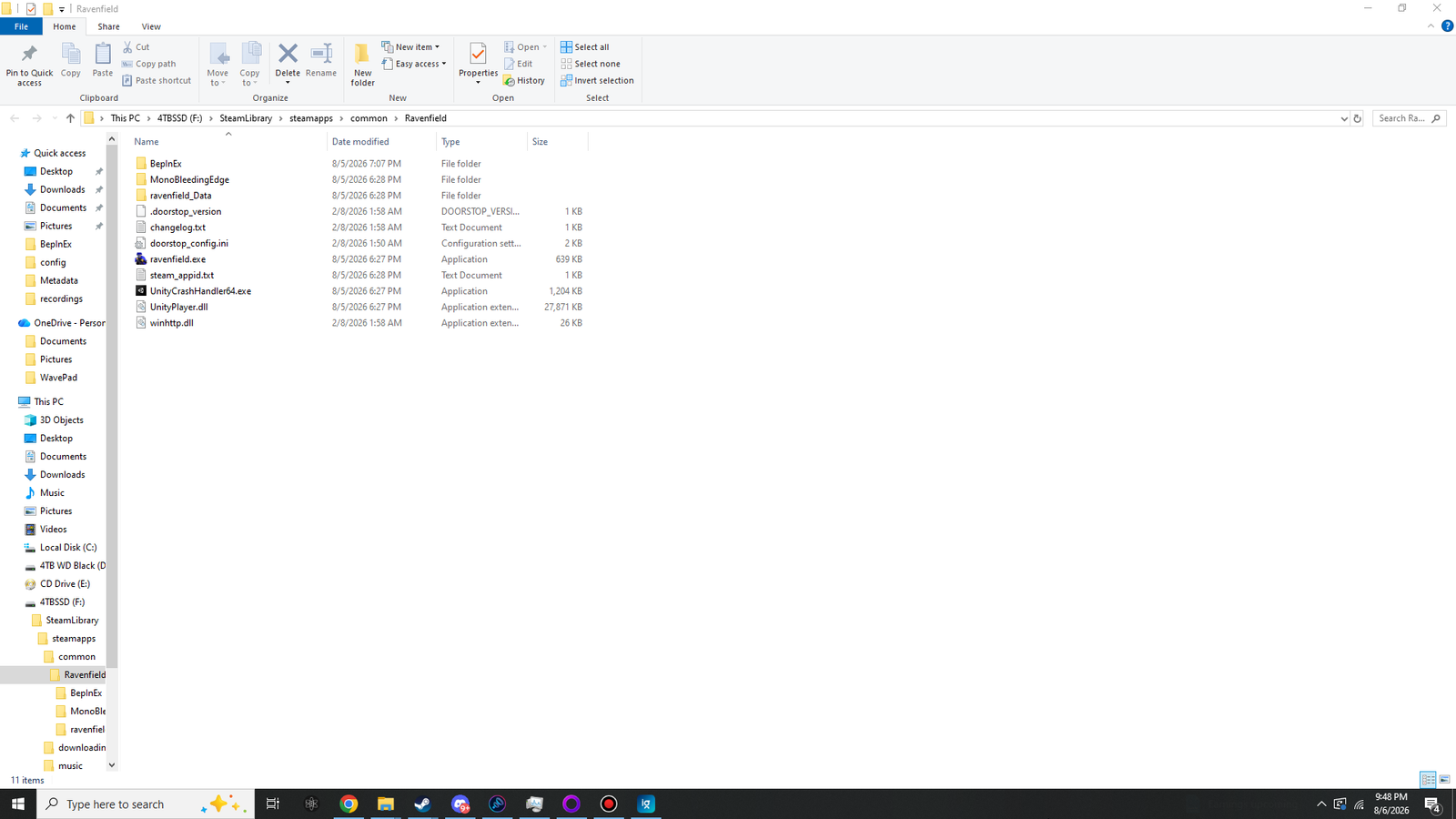 (opens the full-size 1920 by 1080 image)
Start the game once
Start Ravenfield from Steam and wait for the main menu.
Quit the game.
Open the
BepInExfolder. It now holdscache,config,core,patchers,pluginsandLogOutput.log.
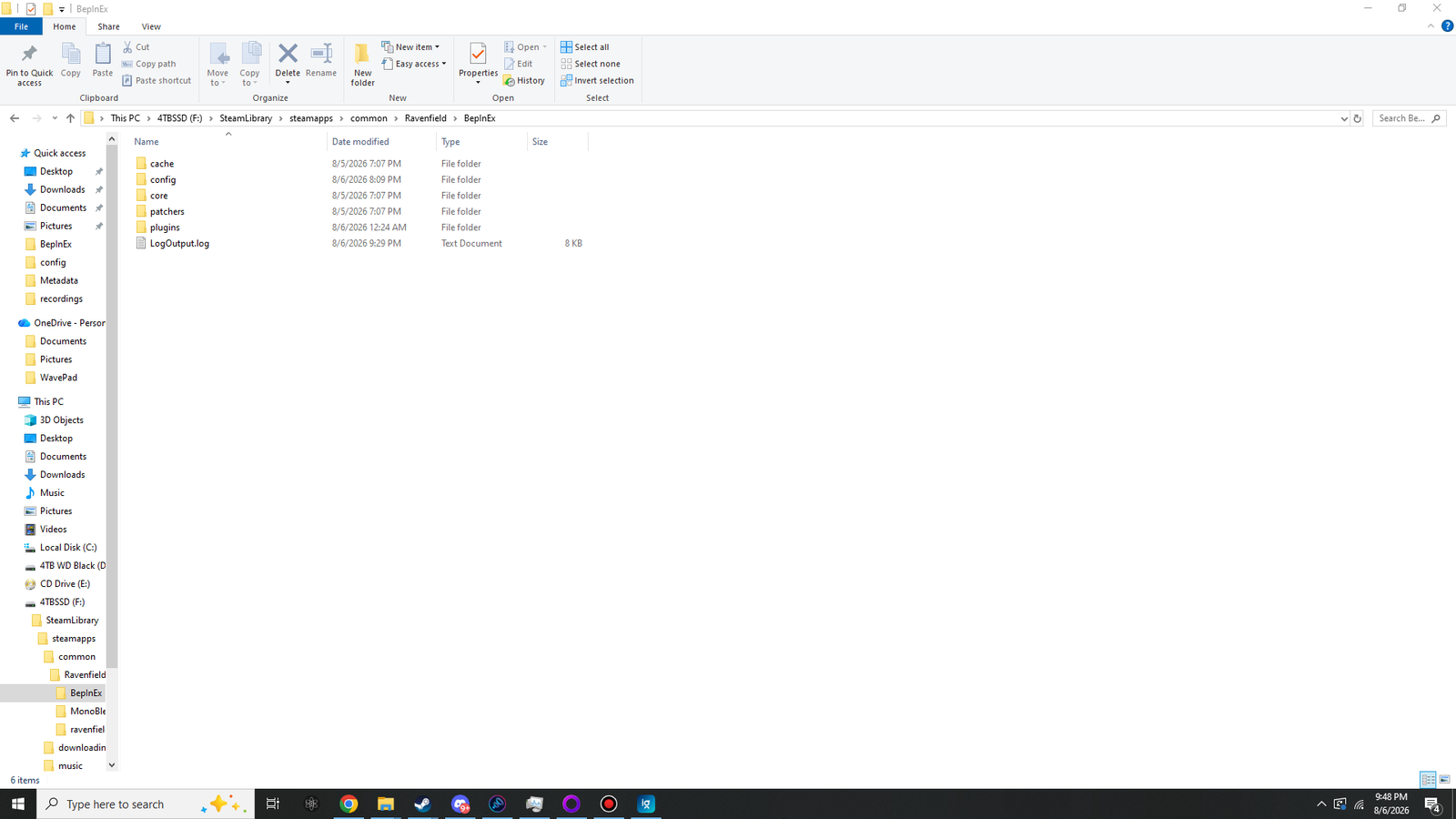 (opens the full-size 1920 by 1080 image)
The zip only brought core. Everything else was created by BepInEx during that first start, which is the first sign it works.
plugins is where RaveM goes in Step 3.
Check that BepInEx loaded
Open BepInEx\LogOutput.log in Notepad. BepInEx rewrites it every time the game starts.
Look for these lines; there are others in between:
[Message:   BepInEx] BepInEx 5.4.23.5 - ravenfield (...)
[Info   :   BepInEx] System platform: Bits64, Windows
[Message:   BepInEx] Preloader started
[Message:   BepInEx] Chainloader ready
[Message:   BepInEx] Chainloader started
[Info   :   BepInEx] 0 plugins to load
[Message: BepInEx] Chainloader startup completeBepInEx 5 (x64) runs
Ticks off this check on the READY board. Saved in this browser only.
Optional: show the BepInEx console
BepInEx can show its log live in a separate window while you play. It's off by default and handy when something goes wrong.
Open
BepInEx\config\BepInEx.cfgin Notepad. The first start created it.Find the
[Logging.Console]section and changeEnabled = falsetoEnabled = true:[Logging.Console] ## Enables showing a console for log output. # Setting type: Boolean # Default value: false Enabled = trueSave the file and start the game. Set it back to
falseto hide the window again.
Linux and Steam Deck (Proton)
On Linux and Steam Deck, Ravenfield runs through Proton, which uses its own built-in winhttp.dll unless you tell it otherwise.
BepInEx's documentation gives the fix:
Install protontricks. On desktop Linux, start it with
protontricks --gui. On Steam Deck, install it from the Discover store and start it from Steam's search bar.Pick Ravenfield, choose Select the default wineprefix, then Run winecfg.
On the Libraries tab, pick
winhttpunder New override for library, click Add, then Apply.
Full instructions: Running under Proton/Wine in the BepInEx docs. The screenshots in this guide were taken on Windows, so they don't cover the Proton route.
Turn BepInEx off without uninstalling
To play unmodded Ravenfield without deleting anything, open doorstop_config.ini in the game folder and change
enabled = true to enabled = false in its [General] section. Change it back to bring BepInEx and every plugin back.
[General]

# Enable Doorstop?
enabled = false
To switch off only RaveM and keep BepInEx running, see Turn RaveM or BepInEx off.